%20{%20.v%20{%20fill:%20%23edeef0;%20}%20.cursor%20{%20fill:%20%23ff4d5e;%20}%20}%20%3c/style%3e%3cpath%20class='v'%20d='M4%2014h10.5L22%2039.5%2029.5%2014H40L28%2050H16Z'/%3e%3cpath%20class='v'%20d='M42%2014h33v9H63v27H54V23H42Z'/%3e%3crect%20class='cursor'%20x='78'%20y='45'%20width='18'%20height='5'/%3e%3c/svg%3e)
Using itIn the terminal: chooser
The chooser
Using the chooser
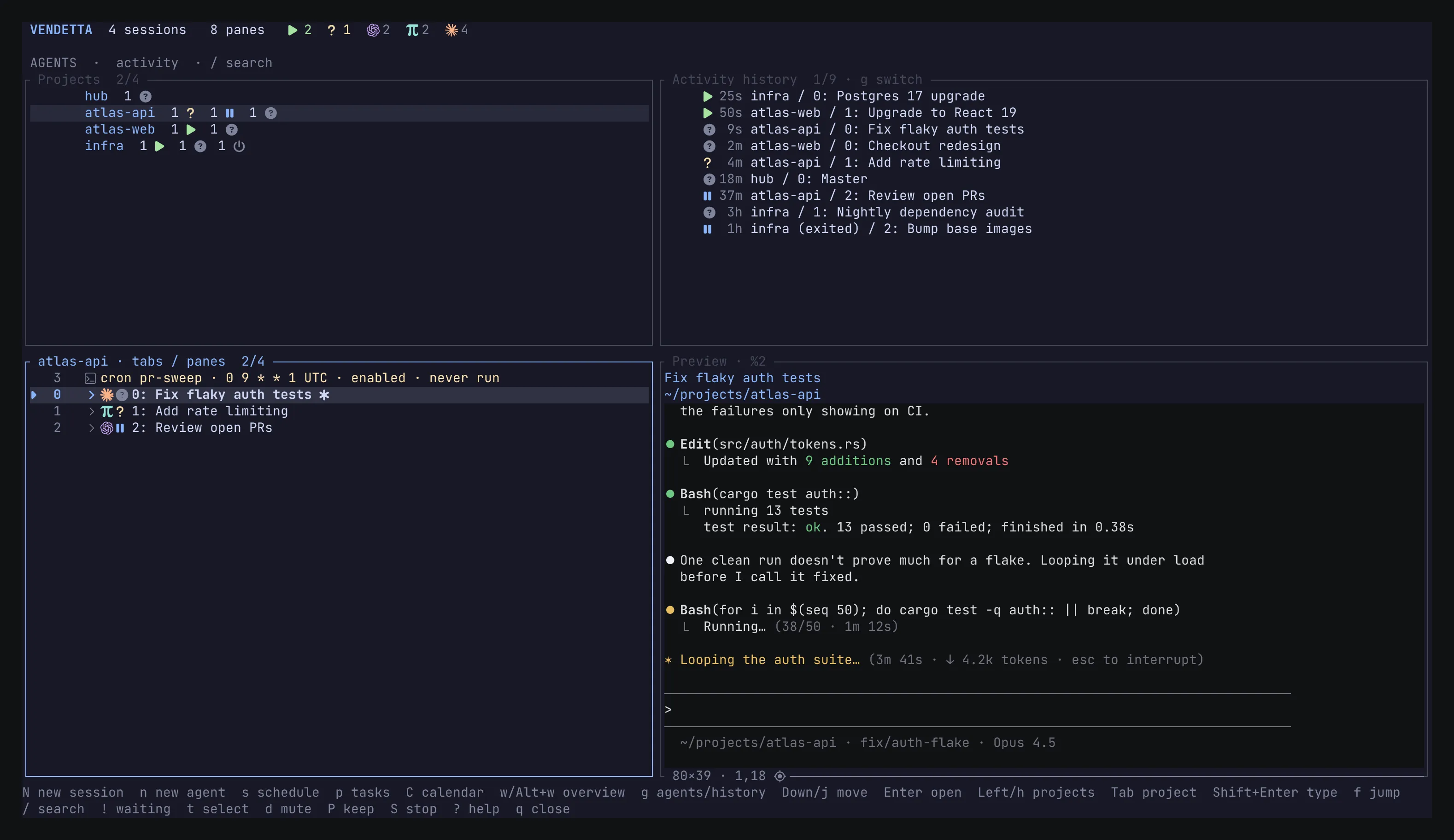
Section titled “Using the chooser”Press Alt+s (set it up), or run vendetta tui in any terminal. Agents
outside every host are listed too (see Without a host). tmux is the
server in [plugins.host-tmux].
The projects are on the left, each with how many of its agents are waiting, working,
ready, and exited (4 ▶ 3 ○ 5 ×), and the selected project’s agents beneath them:
the live ones most recently active first, then other tabs, then exited conversations,
most recent first. Activity history is top right, and a live preview of the selected
agent below it; with no agent selected, history takes the whole column. Enter or → moves into a
project’s agents and ← back to the projects, where Enter returns to the agent
you last selected there. Enter on a project with nothing beneath it opens its
session. The project you opened the chooser from is selected, and it stays listed
even when it has no agents. The configured Master project is always first.
Arrange the panels as you like, or list every project’s agents in one tree.
Status icons
Section titled “Status icons”| Icon | Fallback | Color | Meaning |
|---|---|---|---|
nf-fa-play |
▶ | Green | Working |
nf-fa-question |
? | Yellow | Waiting for you: a question, or its next prompt (Claude Code shows blue for that) |
nf-md-shield_alert_outline |
! | Red | Permission requested |
nf-fa-pause |
○ | Blue | Ready: for its first prompt, for the next one on Claude Code, or after an interrupt |
nf-fa-circle_question |
◇ | Gray | Found, but its state is unknown |
nf-fa-power_off |
× | Gray | Exited, ready to restore (in a project’s counts) |
Project rows show one status icon per agent. Tabs and panes also show a provider badge:
- Codex: purple OpenAI
- omp: teal pi
- Claude Code: peach sun
- OpenCode: white code
- Gemini: blue star
- Aider: green wrench
A muted agent shows nf-fa-bell_slash (fallback ⊘) beside its
status, in the tree, history, and the overview; d mutes or unmutes it. A
kept conversation shows nf-md-bookmark (fallback ※); P keeps it or
stops keeping it. An ephemeral one shows nf-fa-hourglass_end
(fallback ⧖).
Titles come from the terminal title, so Codex conversation names and omp titles
stay live and searchable. ? shows the legend.
Shared projects
Section titled “Shared projects”What another person shares with you (see instances), a whole
container project, is listed under its own project row, the project and the sharer
(groceries ⇄ Georgi). Its agents show nf-md-swap_horizontal (fallback ⇄). Your own
shared projects and their agents show nf-fa-share_alt (fallback ⇉) with how many
people see them; the preview names them.
The preview shows a shared agent’s screen; its chat opens in the apps. Enter resumes a
shared project’s ended conversations and n starts agents in it. Stopping,
deleting, renaming, keeping, teams, and schedules stay with the sharer; the chooser
says so and sends nothing. When the sharer’s Vendetta cannot be reached, its agents
are dimmed and refuse input. Sharing and leaving a share are in the apps and
vendetta share.
In the overview, a shared conversation’s prompts are labeled with who sent them.
Managers
Section titled “Managers”A manager shows [Manager] before its name, and the
agents it manages are listed beneath it, wherever they run; one from another project
is named with its project. A member of several managers is listed beneath each, with
↳ also and the others’ names. When no manager’s row is shown (its project folded,
filtered out, or exited), it stays where it runs.
Wherever a member is not beneath a manager (history, the overview, the
HUD, confirmations, or its own tab), ↳ and its managers’ names follow its name: the
first two, then how many more, as ↳ Lead, Docs +1, as in the apps. A
long name shortens first; both tags stay. A manager the chooser does not list gives
no ↳.
- Tag agents and press n to start a new manager for them, in the first one’s project. Request is its first task, and optional.
- With nothing tagged, n asks for the type, Agent or Manager. A manager needs a host; one started from the chooser in a plain terminal window cannot.
- A new manager also asks for its Team model and Team effort: what the agents
it creates run on for the selected provider. Default leaves them to
[harnesses.PROVIDER] team, shown in brackets. - E on a manager changes them later, one provider at a time; Enter saves.
- Tag agents, select another, and press m: the selected agent manages them too; they keep their other managers.
- M takes the selected or tagged agents out of every team.
Managers are told who joined or left. A change stands even when its manager could not be told; the footer says why.
| Key | Action |
|---|---|
| ↑/↓, j/k | Move |
| ←/→, h/l | Fold/unfold, move to parent/child; from the projects into a project’s agents, and back |
| PageUp/PageDown, Home, End/G | Move by a page, or to the first or last row |
| Tab / Shift+Tab | Next / previous project |
| Enter | Open the selection; restore an exited conversation; on a project, go into its agents |
| 0–9, aa, ab… | Select a row by its hint (Enter opens) |
| f | Explicit hint mode |
| / | Search names, paths, commands, providers, states, ignoring case and accents as the apps do; in the projects view, the list you are in: the projects by name, or one project’s agents. Enter keeps the filter and the selection where they are |
| Esc | Leave search; in a project’s agents, back to the projects; otherwise clear search and filters and show every project, including those with no agent |
| c | Cycle view: all → agents → each provider |
| ! | Only agents that need you |
| e | Hide or show exited conversations in the tree and history; remembered |
| g | Switch focus between the projects or tree and history |
| n / N | New agent, or a manager for the tagged agents / new ordinary session |
| s | Schedules: a new one for the selection, or the selected schedule |
| p / C | Personal tasks / their week calendar |
| w, Alt+w | Overview |
| v | Toggle the preview |
| Shift+Enter, Alt+q | Type into the previewed terminal / back to navigation |
| Alt+arrows, V | Scroll the preview / follow its cursor again |
| +, = / - / Space | Expand all / collapse all / toggle branch |
| O / r | Cycle sort / reverse |
| t / T / Ctrl+t | Select (tag) rows for X, S, n, m, or M / tag visible / clear tags |
| x / X | Close selected / tagged after a confirmation listing everything affected; on an exited row, delete it from history |
| S | Stop the selected or tagged agents; conversations stay restorable, and an agent with an open question or approval is left running |
| m | Make the selected agent the manager of the tagged agents |
| M | Take the selected or tagged agents out of their team; on a manager, dissolve its team |
| E | The selected manager’s team model and effort, by provider |
| A | On a project with a vendetta.toml: trust it, approve what it added, or stop trusting it, after a confirmation listing the agents (provider, model, team) and schedules it runs; on a declared agent awaiting approval, approve it alone |
| d | Mute the selected or tagged agents, or unmute them when all are muted: only their own alerts and timers reach you |
| P | Keep the selected or tagged conversations, live or exited, from auto-delete, or stop keeping them when all are kept |
| R | Rename the selected agent (an exited row, or a tab or pane showing one agent) for every client, or a session, tab, or pane title, starting from its current name; an agent saved with an empty name gets its own title back |
| Ctrl+u | Clear the text being typed: search, rename, or a form field |
| b | Open the terminal’s own chooser |
| Alt+Shift+A | Select the Master agent |
| ? | Help |
| q, Ctrl+c | Quit |
Hints count from the selected row (relative_jumps) and, by default, only select;
press Enter to open (confirm_jumps). Hint letters skip command keys, so a hint
never triggers a command. The mouse wheel scrolls the list or preview, and a click
selects. All keys can be remapped.
Layout
Section titled “Layout”[tui.layout] in the configuration places the panels and sizes
them. Columns run left to right, each stacking its panels top to bottom; rows run
top to bottom, each placing its panels side by side. Sizes are percents: a column’s
width or a row’s height of the chooser, and "name N%" of its column or row. Panels
without a size share the rest.
[tui.layout]
columns = [
  { width = 45, panels = ["projects 40%", "agents"] },
  { panels = ["history 40%", "preview"] },
]The panels are projects and agents together, or tree, every project’s agents
in one list; history; and preview. Leave one out to hide it. A hidden panel
([tui.history] enabled = false, v, or a terminal too narrow for the preview) gives
its room to the others.
# The tree with history beneath it, the preview on the right
columns = [{ panels = ["tree", "history"] }, { width = 40, panels = ["preview"] }]
# The preview along the bottom
rows = [{ panels = ["tree", "history 35%"] }, { height = 45, panels = ["preview"] }]A layout that makes no sense is replaced by the default, and the chooser’s header says why.
Preview
Section titled “Preview”The preview mirrors the selected pane live, with colors, at 30 fps by default. In the projects view it shows only a live agent’s terminal. An agent in its project’s Agents window is shown alone at the preview’s size, while no terminal shows that window; other panes are shown at their own size. It hides on narrow terminals. Shift+Enter sends your keys, Ctrl+C, and pastes to that exact pane; press Shift+Enter or Alt+q to return. Typing stops if the pane closes or restarts.
Compact layout
Section titled “Compact layout”Below 100 columns or 24 rows, for example on a phone or in a small popup, Vendetta
hides the preview and auxiliary chrome. It keeps titles, status icons, hints,
history, search, and help, and Shift+Enter still types into a terminal, on the whole
screen. It works down to 20×6. Whatever the layout, it shows one list with history
below: the tree, or in the projects view the projects, or after → the selected
project’s agents. See [tui.compact] in configuration.
Without a host
Section titled “Without a host”tmux and Kitty are hosts: Vendetta reads, types into, and launches in their panes. It still finds agents running in any other terminal, and lists them under their git project (or their directory), in the tree and in the history, next to that project’s session if it has one.
- Enter raises the agent’s terminal window on Hyprland.
- The preview shows its details instead of the screen.
- Messaging,
vendetta agent, questions, images, prompts to and interrupting Claude Code, omp, and OpenCode, Claude’s slash commands, and stopping work as in tmux. - Prompts to Codex, Gemini, and Aider, other providers’ slash commands, and
interrupting those agents type into the terminal, and
vendetta agent readcaptures it, so they need a host. - An agent inside a tmux server other than Vendetta’s stays unlisted.
To start new agents in a terminal window, set the terminal command. The agent’s
command is appended, and {cwd} becomes its directory:
[launch]
terminal = ["kitty", "--detach", "--directory", "{cwd}"]When the chooser itself runs outside every host, n then opens a new window of that
terminal. vendetta agent create --placement terminal does the same.
Schedules, Telegram, Discord, and the Master start agents in the host [launch] host
names, tmux by default.
Activity history
Section titled “Activity history”History sits top right, or wherever the layout puts it; press g to focus it. It lists every live agent in the HUD’s order (running first, then most recent), then exited conversations, newest first. The order stays fixed while the chooser is open, and new agents are appended at the end.
- Enter on an exited conversation restores that exact conversation in a fresh
pane of its project’s Agents tab. This works for Codex, omp, Claude Code, and
OpenCode, and needs the provider in
PATHand the original directory. - Enter on a project header opens the project normally. If the session is gone, it is recreated with a shell in the recorded directory; nothing is resumed.
xon an exited row removes it from history. It keeps the conversation files and deletes its Telegram topics, Discord channels, and app chats.!in history shows agents that asked for something: questions, approvals, completions, and errors.
Exited conversations also appear as gray rows in the tree, at their recorded project and tab.
[tui.history]
enabled = true
max_entries = 200   # 1–2000
events = ["started", "working", "input", "approval", "completed", "interrupted", "stopped", "error", "detected"]Journals live in ~/.local/state/vendetta/history, kept for seven days. They hold
states and target metadata, never prompts, messages, or tool arguments. Delete the
directory to clear history.
Auto-delete
Section titled “Auto-delete”The worker can delete stopped conversations once they have been stopped a while, as x does: the history entry, its Telegram topics, Discord channels, and app chats. Conversation files stay. Exited rows it will delete say when (“deletes in 2d”); P keeps a conversation, live or exited, so it is never deleted.
[auto_delete]
enabled = false
after = "72h"          # 1m to 6d: 3d, 72h, 1d12h, 90m
projects = []          # regexes over project names; empty means every project
skip_projects = []     # regexes; a match is never auto-deleted, whatever projects says
ephemeral_after = "30m" # 1m to 6d; ephemeral conversations, even with enabled = falseA pattern matches anywhere in the name unless anchored: "^coach$" is that project
alone. Besides kept and skipped conversations, auto-delete leaves live agents, those a
schedule reuses or targets by session, the Master, a manager whose team has
members, and a member whose manager is running. after stays under the history’s
seven days, which a pass needs to see a conversation; one that stays past them leaves
the history as before, its topics and chats untouched. vendetta agent auto-delete --dry-run lists what the next pass
would delete and why each other stopped conversation stays, even while auto-delete
is off. The worker rereads the setting and runs a pass soon after it changes, then
every ten minutes; vendetta agent keep and unkeep take conversation keys.
An ephemeral conversation goes once it has been idle for ephemeral_after, whether
auto-delete is on or not and whatever projects says: a live one is stopped first,
then deleted as above. Idle means no turn running, no question or approval open, and
no prompt sent or waiting for that long. The apps make a new chat ephemeral with the
timer button, or an existing one from its menu; vendetta agent create --ephemeral
and vendetta agent ephemeral KEY (--off to clear) do the same. Keeping a
conversation ends its being ephemeral, and making it ephemeral stops keeping it. The
Master, a manager whose team has members, a member while any of its managers runs, a declared
agent, and a schedule’s conversation never go this way. The worker checks every
minute, so one goes within two minutes of its time.