%20{%20.v%20{%20fill:%20%23edeef0;%20}%20.cursor%20{%20fill:%20%23ff4d5e;%20}%20}%20%3c/style%3e%3cpath%20class='v'%20d='M4%2014h10.5L22%2039.5%2029.5%2014H40L28%2050H16Z'/%3e%3cpath%20class='v'%20d='M42%2014h33v9H63v27H54V23H42Z'/%3e%3crect%20class='cursor'%20x='78'%20y='45'%20width='18'%20height='5'/%3e%3c/svg%3e)
StartConnect your phone or browser
Connect your phone or browser
Publish the app port on your tailnet, then pair a browser and an iPhone, each with a one-time code.
This tutorial puts your agents on a second screen: a browser first, then an iPhone. You publish one port privately and pair each device once.
You need the worker running and Tailscale on both the computer
and the device, in the same tailnetTailnet. A private network between your own devices, made with Tailscale.. The examples use
workstation.example.ts.net; put your computer’s tailnet name in its place. For a
reverse proxy of your own, see Publish the apps privately.
Set the address
Section titled “Set the address”The app endpointApp endpoint. The private address your devices connect to. It listens on loopback until you publish it.App endpoint. The private address your devices connect to. It listens on loopback until you publish it. listens on 127.0.0.1:8743. Tell Vendetta the address your
devices will use for it:
[plugins.app]
public_url = "wss://workstation.example.ts.net:8743/v1"Restart the worker so the app plugin starts with it:
vendetta notify stop && vendetta notify start
vendetta notify status # plugins: messaging=runningPublish the port
Section titled “Publish the port”Have Tailscale serve the port over HTTPS inside your tailnet:
tailscale serve --bg --https=8743 http://127.0.0.1:8743Nothing outside your tailnet reaches it. Tailscale provides the certificate; the apps
accept only wss:// addresses.
Pair a browser
Section titled “Pair a browser”On the computer, ask for a pairing code. It prints a QR code (when qrencode is
installed), the server, and a code:
$ vendetta app pair
Server: wss://workstation.example.ts.net:8743/v1
Pairing code: ABCDE-FGHJK-LMNPQ-RSTUV
Scan this in the Vendetta app within 10 minutes. The code works once.On the device, open https://workstation.example.ts.net:8743/. The page says Pair
with Vendetta. Type the code into Pairing code or link and press Pair. The
server is the address you opened, so there is nothing else to fill in.
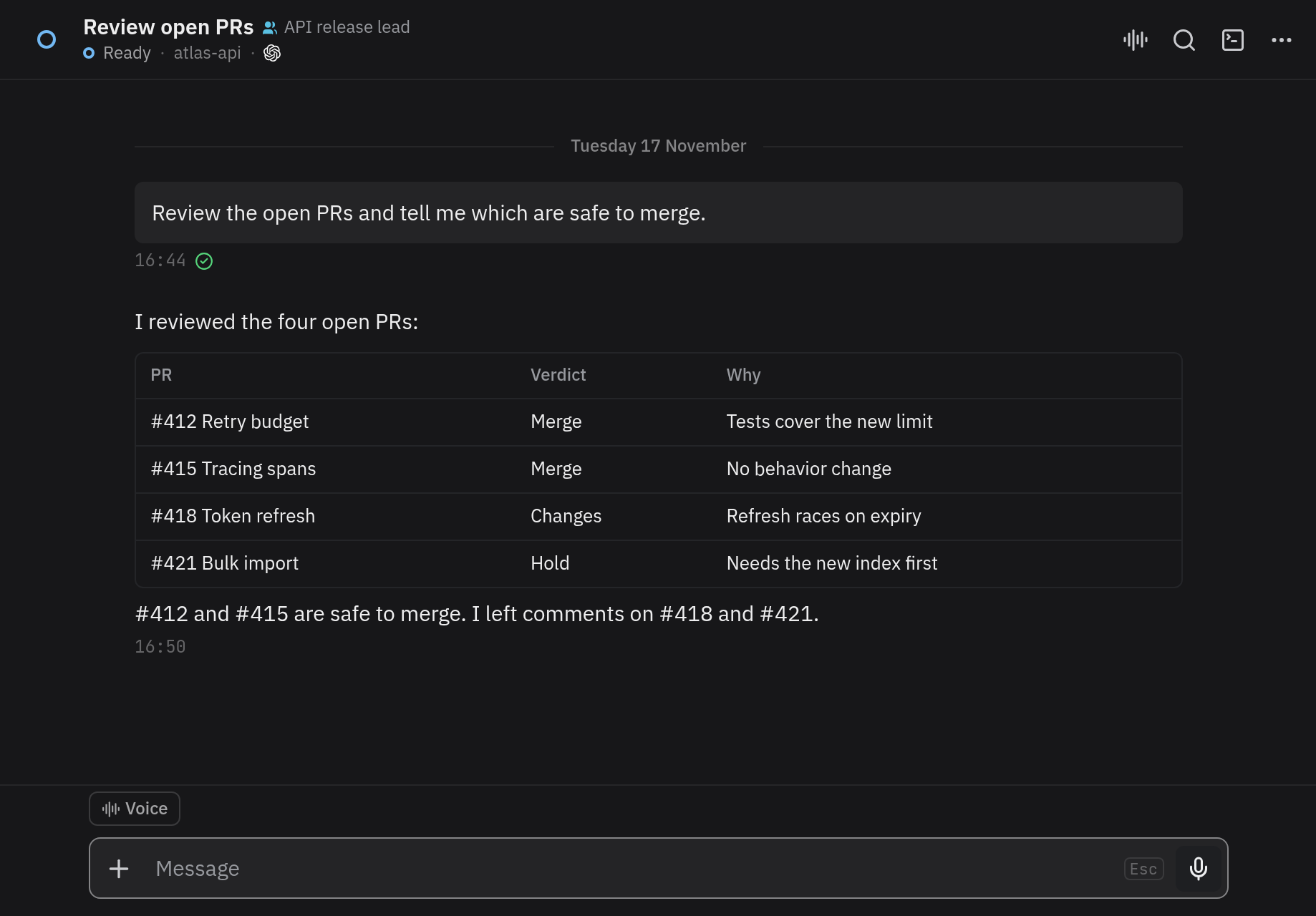
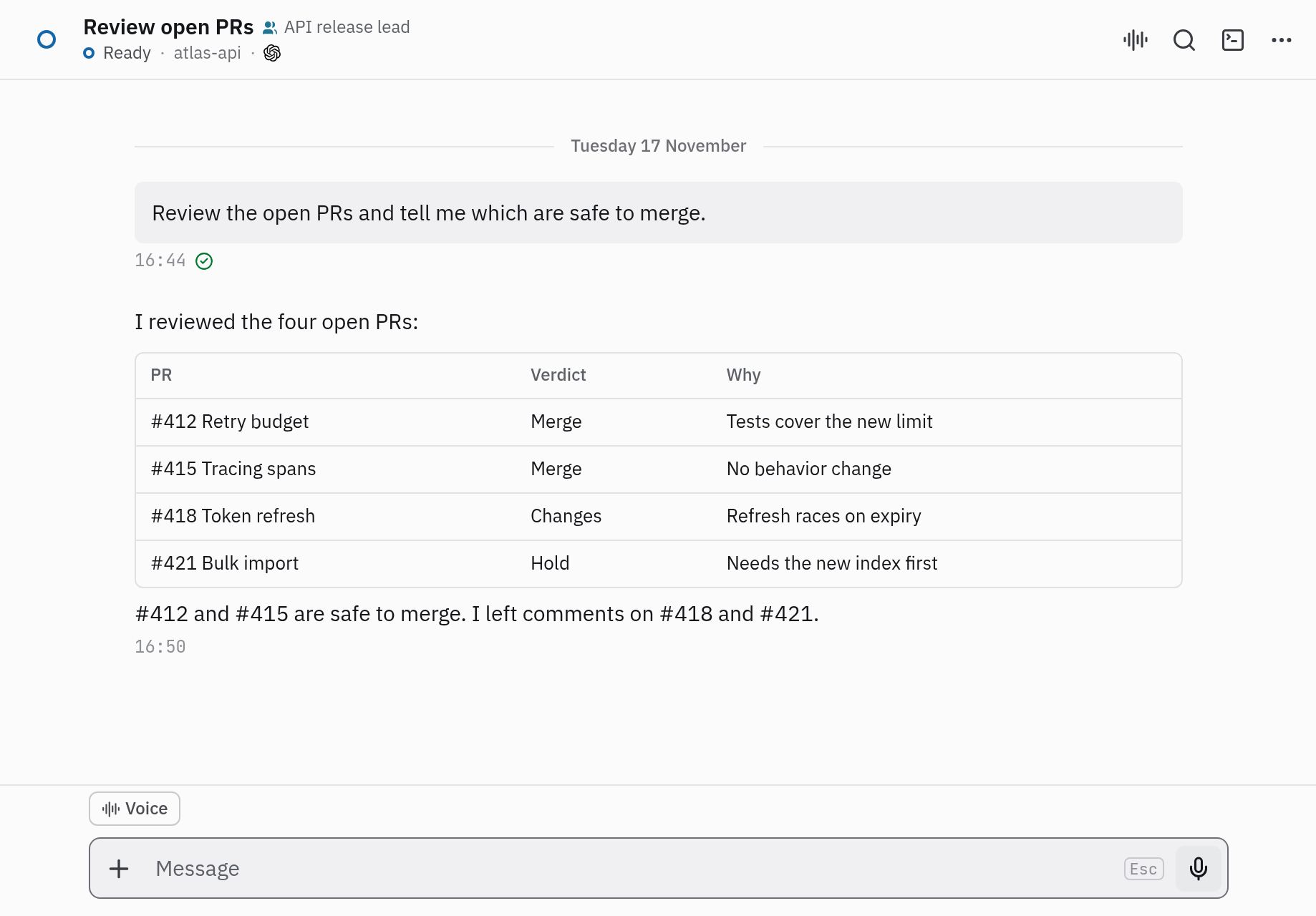
Your agents appear as chats, grouped by project. Open one and send it a message; the same prompt shows in the agent’s terminal.
Pair an iPhone
Section titled “Pair an iPhone”Install the app from the TestFlight link on vendetta.sh/install.
A code works once, so run vendetta app pair again. In the app, tap Scan
pairing code and point the phone at the QR code in your terminal.
Without a QR code, use Or enter it: type the code into Pairing code or link,
open Server, enter workstation.example.ts.net:8743, and tap Pair.
A phone that isn’t an iPhone uses the web client in its browser, paired as above. Push notifications on the iPhone take more setup: see The iPhone app.
Turn on Advanced
Section titled “Turn on Advanced”Every device starts in Simple: your chats by project and what you need to talk to them. For the overview, history, schedules, tasks, models, and managers, open Settings and turn on Advanced. The setting belongs to that device. See Simple and Advanced.
Answer from the device
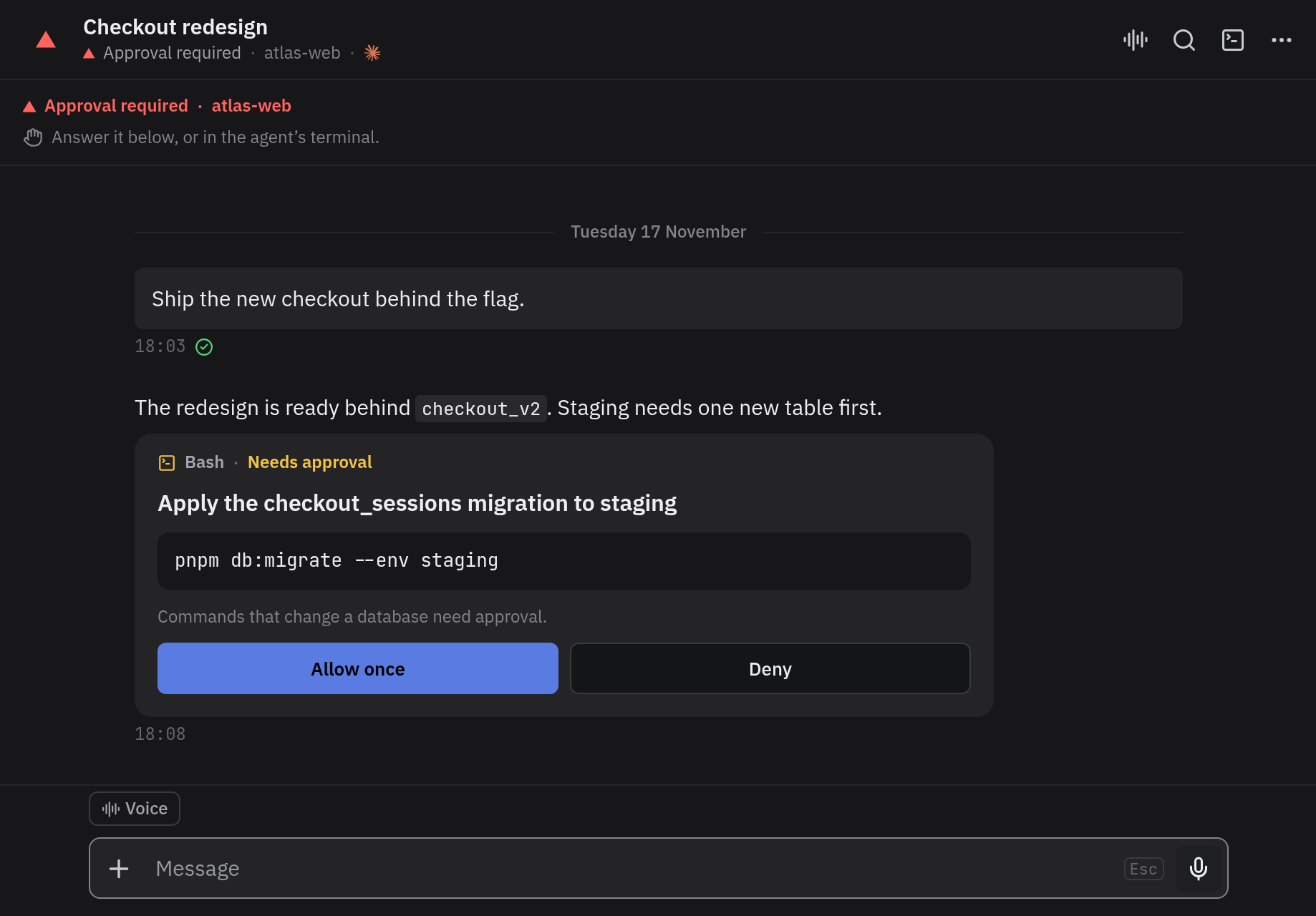
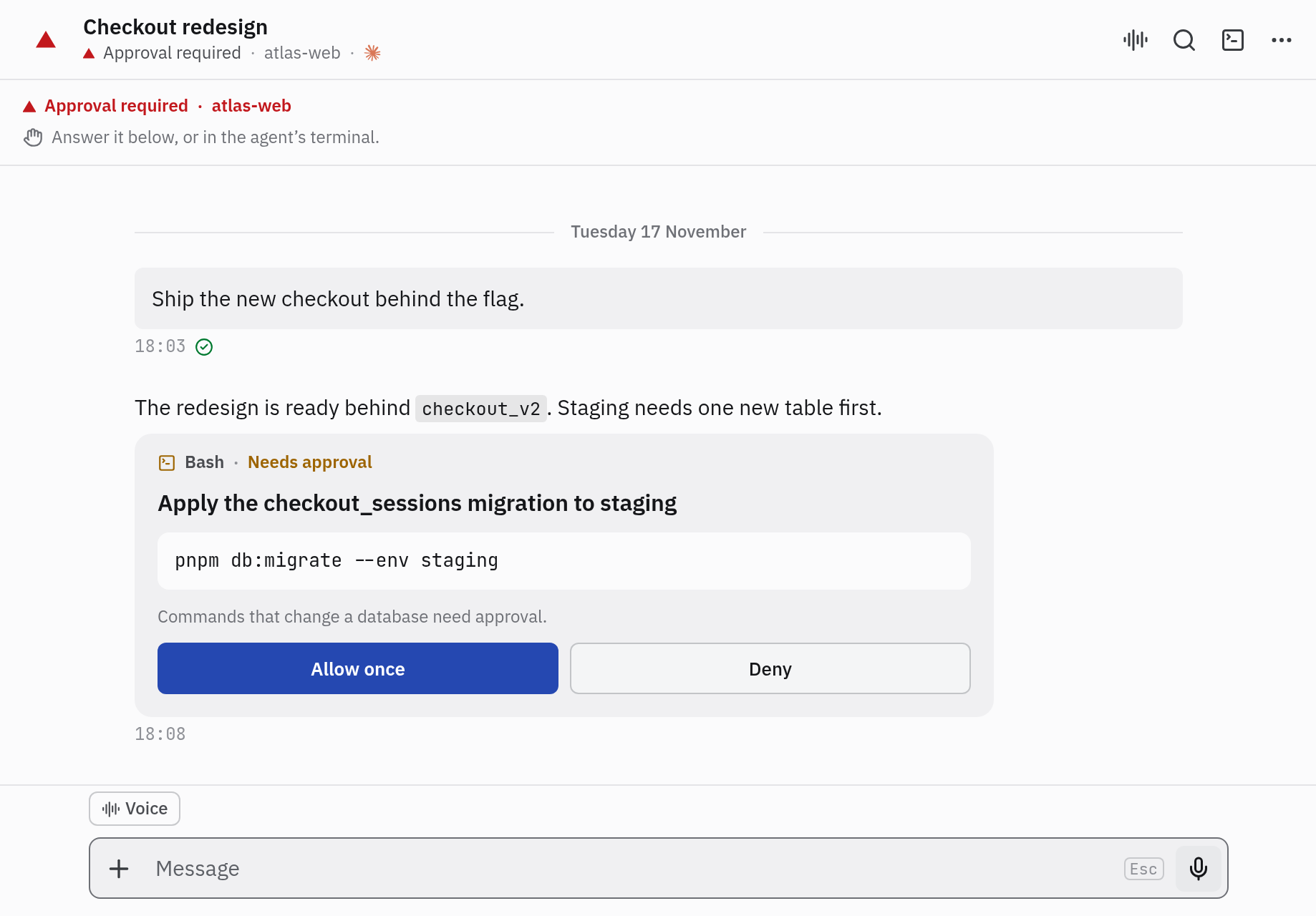
Section titled “Answer from the device”When an agent asks a question, its chat shows a card with the options; tap one. When Claude Code asks permission for a tool call, the card shows the command or the edit with Allow once and Deny.
If the device can’t reach the computer, a bar says Reconnecting… and then Offline · tap to retry. A message you send then reads Offline. Not sent. with Retry; nothing is sent again by itself.
See and revoke devices
Section titled “See and revoke devices”vendetta app devices # every paired device
vendetta app revoke ID # disconnect oneRevoke a lost device at once. A paired device of yours can do what you can do in the apps, including adding and removing people.