%20{%20.v%20{%20fill:%20%23edeef0;%20}%20.cursor%20{%20fill:%20%23ff4d5e;%20}%20}%20%3c/style%3e%3cpath%20class='v'%20d='M4%2014h10.5L22%2039.5%2029.5%2014H40L28%2050H16Z'/%3e%3cpath%20class='v'%20d='M42%2014h33v9H63v27H54V23H42Z'/%3e%3crect%20class='cursor'%20x='78'%20y='45'%20width='18'%20height='5'/%3e%3c/svg%3e)
Using itIn the apps
iOS and web apps
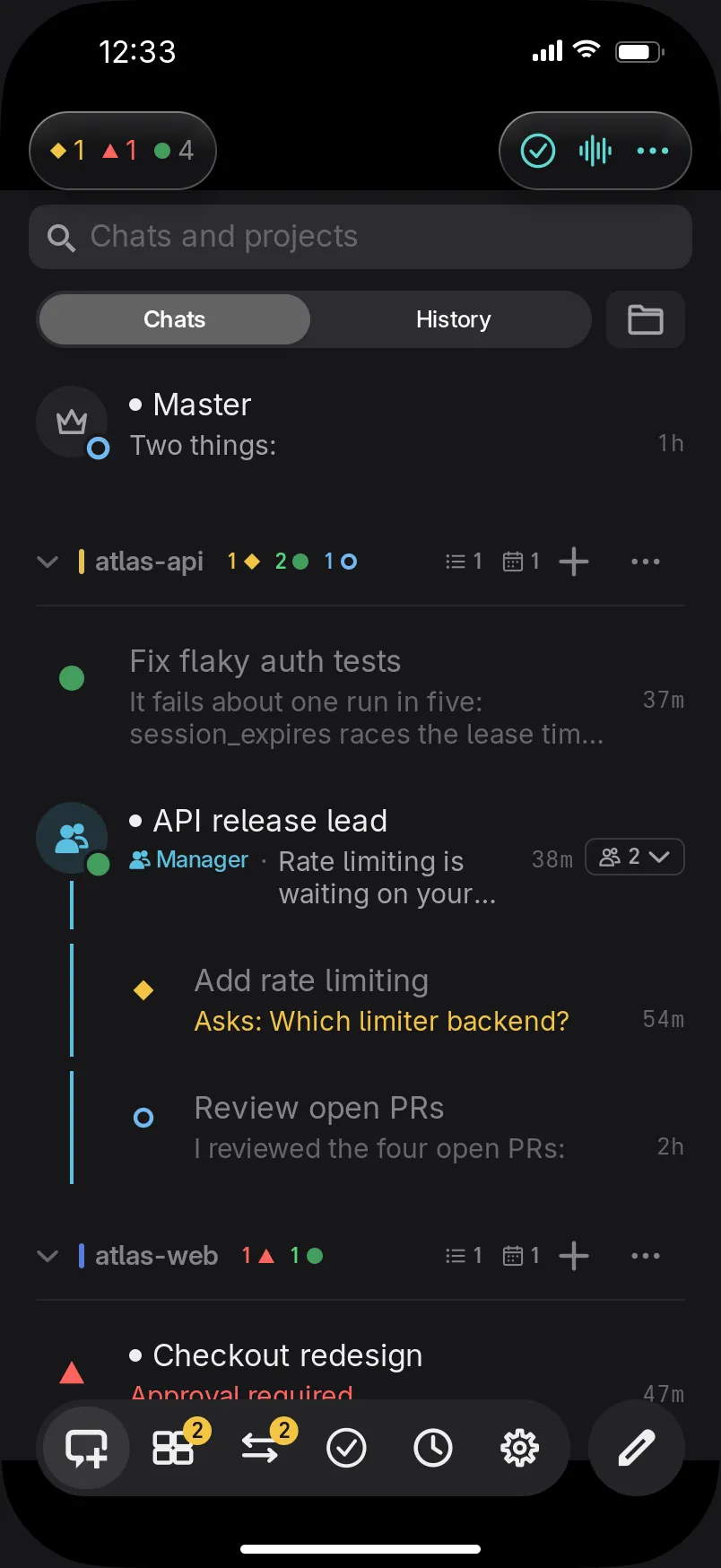
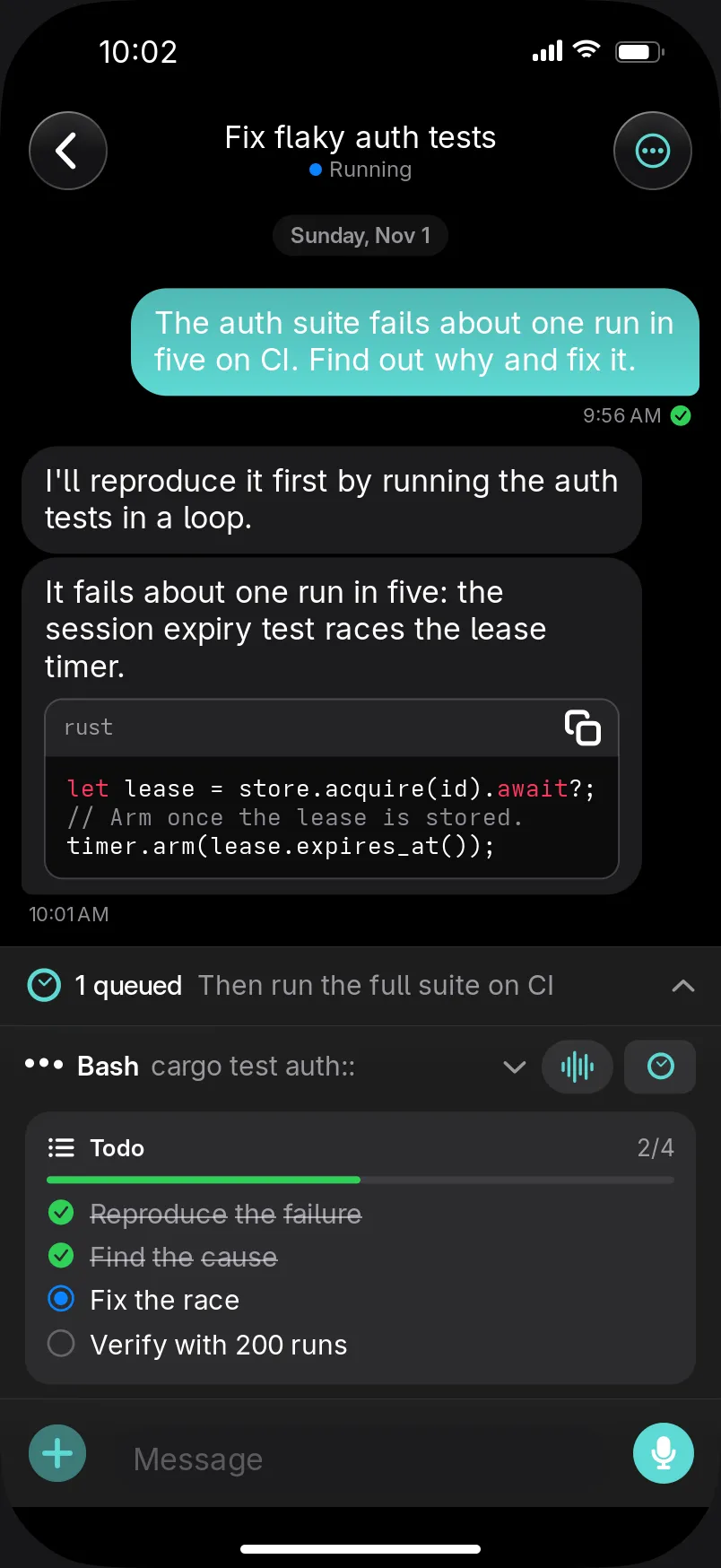
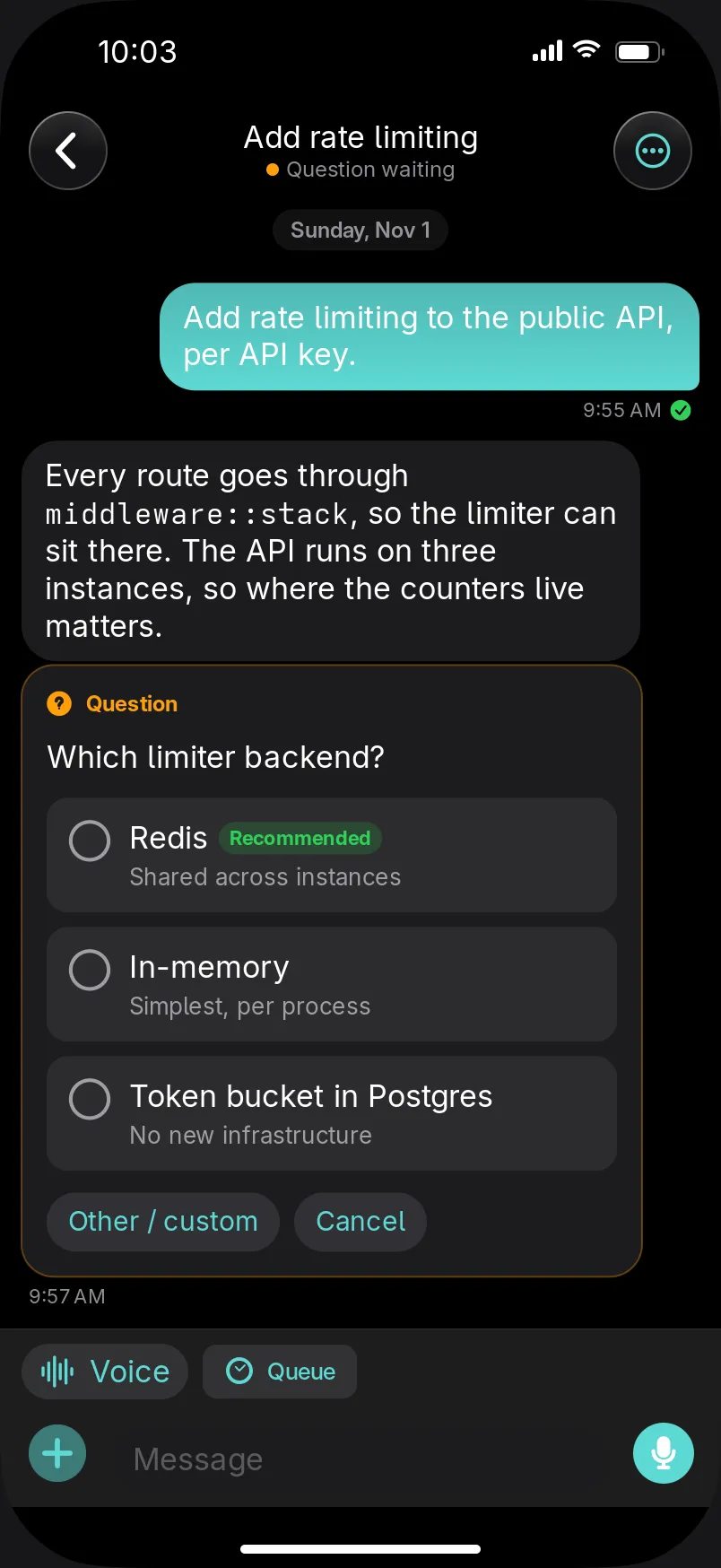
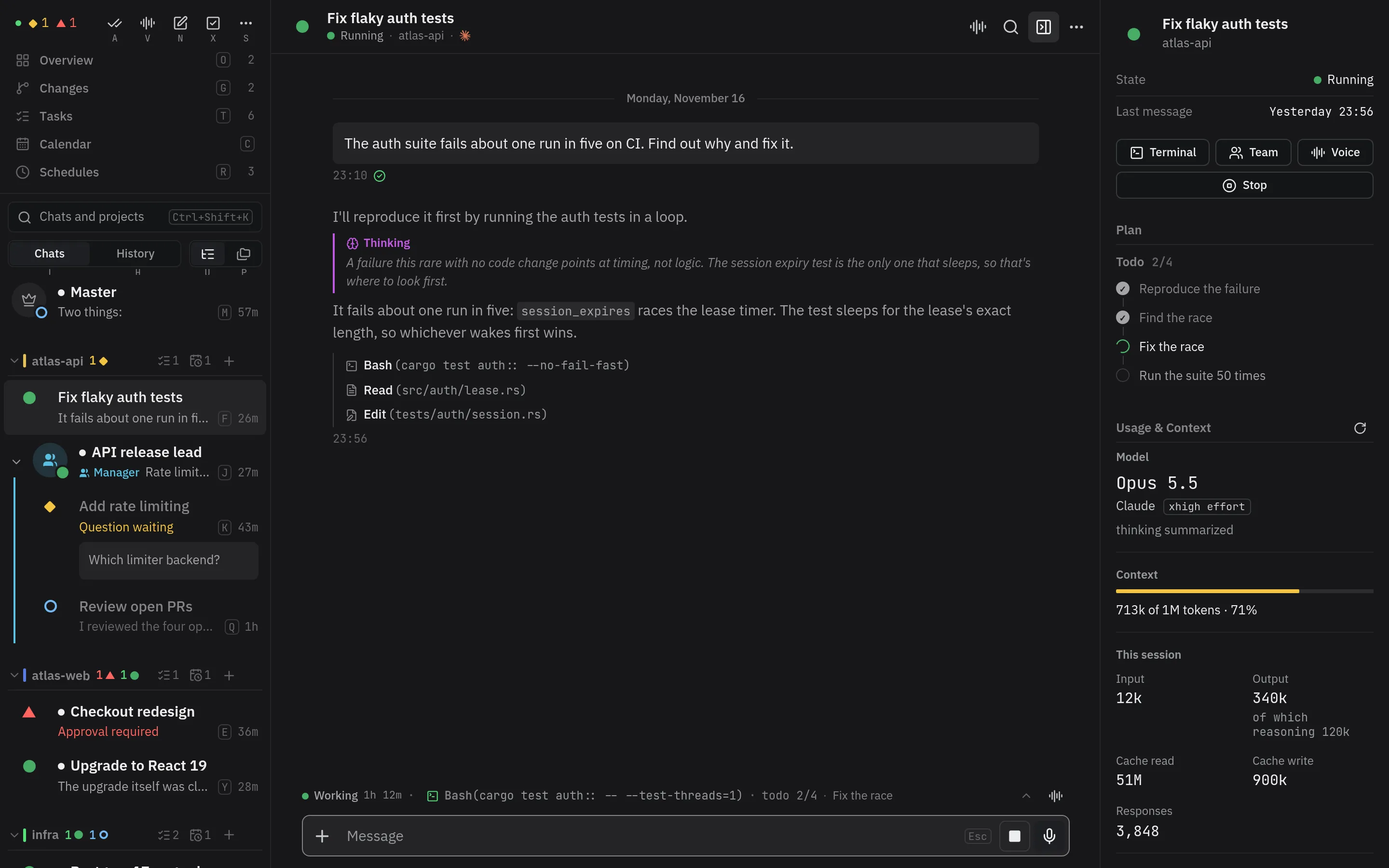
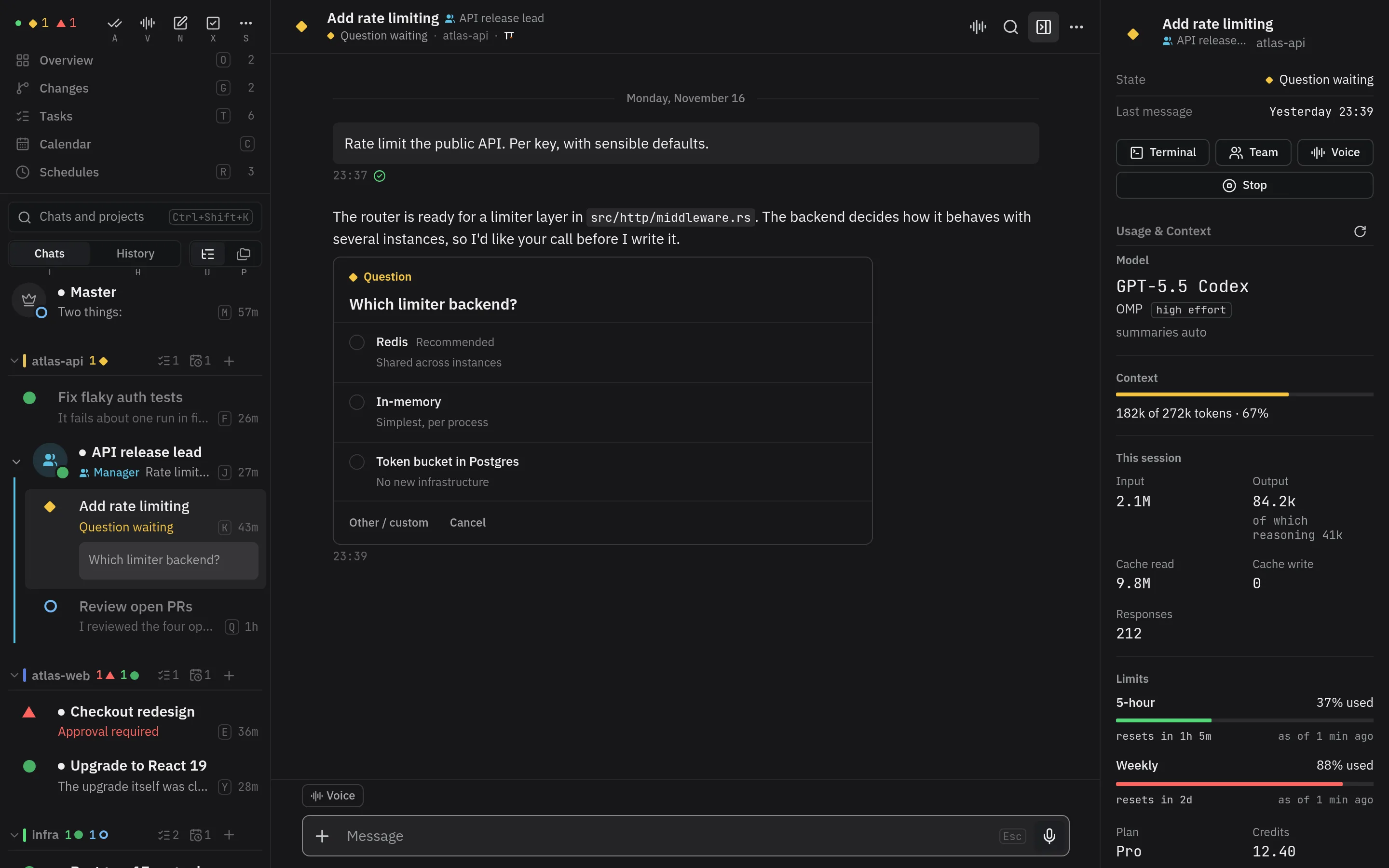
The iOS app and the web client show Master and each project’s agents as chats: live state, replies as they stream, questions as native cards, voice notes and read-aloud replies, photos, videos, audio files, and pages, a message queue for after the agent’s turn, tasks, schedules (a new agent each run, the same agent each time, or one exact conversation; on a time, once, or on demand, for Run now and webhooks), the overview dashboard, and search. Both talk to the app plugin over one private WebSocket, the same one for every client.
Listen and voice mode read replies through [plugins.speech.narration] (on a
person’s Vendetta, the admin’s, through the admin), or the device’s
own voice without it.
A video shows its first frame and length; alone in its message it plays in place, and its full-screen button opens it in the viewer with the same player, still playing. The viewer pages through every photo and video in the chat (Photos and Videos in the chat’s menu): photos zoom, videos have a filmstrip to scrub, frame steps (held, they repeat), speeds from 0.25× to 2×, mute, Picture in Picture, Share, and Save. On a touch screen, pinch to zoom, swipe between items, and swipe down to close. A copy Vendetta removed reads “No longer kept”. A video or audio file played once is kept on the device (1 GiB, the least recently used dropped first) and plays again without loading; a video the browser can’t decode, such as HEVC in some browsers, offers Save instead.
Interrupt, first in a chat’s menu, ends the agent’s current turn as Escape does in its terminal; the agent keeps running, and your queued messages go on.
Mark as Read in a chat’s menu marks it read, and a manager’s whole team with it, wherever its members run. A project’s menu (its header, its row in the projects view, and its own screen) marks every chat the project shows, muted and exited ones included, and the bar of several chosen chats marks each, a chosen manager’s team with it. A toast says how many chats it marked; every device follows.
Delete, wherever a chat is offered (its menu, a row’s, a project’s page, history, and several chats selected at once), asks right there, then stops the agent if it is idle and deletes it with its chat and history in Vendetta, its Telegram topics and Discord channels; its files stay. The Master, a kept chat, a manager whose team still has members, and an agent working or asking are refused, and the reason shows where you chose Delete.
Once Vendetta accepts a message to a Claude, Codex, or omp agent, its mark under the bubble says what the agent did with it:
- Waiting, with a clock: the agent has not taken it yet, as while Claude holds it for its running turn or Codex and omp have not written it to their transcripts.
- Read: it is in the agent’s input: it started a turn or joined the running one.
- Not delivered, in red: the agent will never read it, as when Escape in Claude’s terminal dropped it, or the agent exited or its conversation was replaced first. Resend, beside it or in the message’s menu, sends the same text as a new message (a voice note’s transcript, as text), whenever the chat takes a prompt: idle, at work, or exited, which it resumes; not while a question or approval waits. Nothing is resent for you.
Messages to OpenCode, Gemini, and Aider agents, photos and albums, and slash commands show only how they arrived. A mark the worker forgets, as when it restarts, goes away; it never turns into Read. On Telegram a dropped message’s 👍 turns 👎, with one “Not delivered” reply to it; Discord sends the reply alone.
Mute in a chat’s menu, or a row’s, silences that agent everywhere (see
muted agents); /mute and /unmute in the chat do
the same. A struck-through bell marks it in the list, the chat header, and the
overview. Its chat still updates and counts unread, but it notifies nothing
and leaves the app badge and the browser tab’s count; its alerts still sound. The
Overview, the home screen’s counts, and the status Live Activity still count it. Agents
a manager starts begin muted, and the manager relays what you need.
On iPhone, Vendetta is in the share sheet of Photos and other apps. Share photos, videos, PDFs or other files (up to ten, 256 MB each), a link, or text, pick the Master, one of the chats active most recently, or New chat in a project, add a message, and tap Send. Vendetta opens and sends it to the chat once it is connected; a new chat opens its composer with the files, message, and project filled in. If Vendetta can’t be opened, it sends the next time you open it. The chats listed are those Vendetta had when you last left it.
A chat’s draft keeps its text and attachments on the device until you send it, also
across a relaunch. Tap an attached photo to draw on it (pen, rectangle, ellipse, arrow,
text), crop it, or turn it before it goes. Typing @ lists the message’s attached photos
first: @Photo 2 names the second attachment, as the agent receives it (album member 2).
New Agent opens a full-screen composer. What you write is the new agent’s first
message, with photos, files, or a voice note. Videos from the photo library, a paste, or
another app (on iPhone, share one from Files or Open in Vendetta) go as videos, which
you and the agent play and mark; the iPhone converts one to MP4 when it must, and sends
one it can’t read as a file. Videos and files over 20 MB upload first, up to 256 MB each:
the message shows how far, with × to stop, and Send again goes on from there. Whatever
can’t be attached says why. The project menu at the top starts in
conversations (in a project, that project; past ten projects, a searchable list).
The flame beside it makes the chat ephemeral: it is deleted after it has been idle for
[auto_delete] ephemeral_after (30 minutes by default). The chips beside Send pick
Agent or Manager, the provider, the model, and the effort, or leave the provider’s own.
To Master sends the text to the Master’s chat instead and opens it. A new
manager’s team runs on [harnesses.PROVIDER] team’s model and effort unless it picks
others; change them from the manager’s chat. Choosing chats and then New Manager opens
the manager’s sheet with them as its team. An ephemeral chat shows a flame by its name
and, while idle, when it goes; Make Ephemeral or Not Ephemeral in its menu
changes it, and keeping a chat ends it.
Starting opens the new chat at once, your first message in it waiting. Until the agent takes input, a bar above the composer says where it is: starting, waiting for the agent, a prompt to answer in its terminal (such as trusting the folder), or that it is taking longer than usual. If it doesn’t start, the bar says why, with Retry. Meanwhile the composer queues what you write; it goes after the agent’s first turn. Going back leaves it starting, its row in the list showing the same, and Delete works on it.
The composer writes rich text: bold, italic, strikethrough, code, links, quotes, bulleted lists, and code blocks, from the text’s Format menu (or Cmd+B, I, E, K and Shift+Cmd+X on a keyboard). They show styled as you write and go as Markdown; pasted Markdown comes in styled. Once a message runs past one line, the expand button at the composer’s top right opens it full screen with a format bar.
A manager’s team folds under it (its team button on the iPhone, its chevron on the web), remembered on the device; folded, it marks any member waiting on a question or approval.
An agent may have several managers. It shows beneath each, marked there with the others’ names (“also Docs lead”); elsewhere the mark names them all. Tapping the mark opens a manager’s chat. Managers… in a chat’s menu adds and removes its managers; Remove from Manager beneath a manager leaves that manager’s team, and elsewhere every team. A choice that would make an agent its own manager is refused.
Progress, an agent’s todo list, shows in the bar above the composer while the agent has a plan, finished ones too: done of total and the item in progress. Tap or click it for every item, each with the agent or reply doing it and the change holding its work, and a reply button that quotes the item in the composer, as replying to a message does; the agent learns which item you mean. In the chat, a plan shows once in full when the agent makes it, then one short line per change: done, started, added, removed. The bar shows no tool call.
Agents link other chats, or one reply in one, as vendetta://conversation/… links,
as a manager does for its team’s results. Tapping or clicking one opens that chat, scrolls to the
reply, and highlights it for a moment; a reply no longer there opens the chat at its
end and says so.
A voice note that fails to send, is refused, or whose connection dropped before Vendetta confirmed it stays in the chat, marked, with Retry, until you send or discard it, across restarts too. One whose connection dropped may have arrived, so check the chat first; nothing is resent on its own. In the web client, leaving a chat while recording keeps the recording there unsent.
A message sent on a link quiet for 15 seconds checks it first: a ping, then a fresh connection if nothing answers. Within about 11 seconds it is sent or reads “Offline. Not sent.”; Retry sends it again. One whose connection dropped after it went reads “Not confirmed”, and Retry asks before sending it again or discarding it.
Marks reply to an agent’s photos, videos, and audio files: Mark, in the media viewer (on the web also in a message’s menu and on an audio file), opens that reply’s media to draw boxes and highlights, mark frames, times, and In and Out segments, each with a typed or spoken note, numbered across the reply. Send goes with optional words or a spoken reply, and one picture per marked photo or frame showing the numbers. The draft stays until the agent accepts the send; a refused or failed one goes again whole with Retry.
Final replies are outlined. Settings can collapse what agents write between your prompt and their final reply into one row, which still shows the newest line while the agent works. A prompt the agent got elsewhere, from the Master, its terminal, or a schedule, shows in its chat too.
Replying to a message, an in-between response included, works as in Talking to agents: the agent gets its text as quoted context.
Pages an agent links (see the vendetta-pages skill) open inside the chat. A
page can send the agent a message, which the chat shows with the page’s title,
and keep its state in <page>.state.json beside it, which the agent can read
and edit too. Pin a page you reuse, such as a release checklist: the chat keeps up
to ten pinned pages above its messages, and a page the agent rewrites stays
pinned with its new content. Agents link a page by its web link, which
vendetta page link FILE prints: https://<app address's host>/?page=<name>, the
address your worker says the app endpoint is reached at. In a terminal it opens the page
in the web client, sending and saving included; in the apps it shows the page in the
chat. Without a worker or an app endpoint it prints a file:// link. vendetta page check FILE reports, one fixable line each, what would
keep a page from working: a file outside the pages folder or over 1 MiB, network loads,
browser storage, or a missing viewport, title, or dark colours.
Agents can sound an alert, such as “back to work in 20 minutes”, with
vendetta alert TEXT [--in 90s | --at 14:30] [--sound ping|chime|bell|alarm],
or start a timer, such as a break between tasks, with vendetta timer 90s [TEXT] (see the vendetta-alerts skill). It arrives in the agent’s chat, or the
root chat outside an agent, and plays its sound even with notifications muted:
live on a device in the foreground, and as a time-sensitive push on the others: the
iPhone app’s when [plugins.app.apns] is set up, a browser’s once Push
notifications is on in its Settings. One
set ten seconds or more ahead shows in the chat at once as a countdown, which
you can cancel there; vendetta alert --cancel ID cancels it too. Outside its chat
a banner tinted by its sound shows the alert for 8 seconds: tap it to open the chat,
or swipe it up. Pending
alerts live in the worker’s memory; restarting it drops them.
On an iPhone, Live Activities show agents on the lock screen and in the Dynamic
Island, when [plugins.app.apns] is set up. The status activity is always
there: how many agents need you (else how many work), counted as the Overview counts
them (muted agents too), and a row per busy project in its colour with its counts,
projects needing you first, then the busiest, up to three and “+N more”. With room
left, the question or approval waiting longest follows (its text only with preview
on). Beneath, how much usage is left, a row per window: with one provider its weekly and
5-hour windows (“Claude 70% left · wk resets Wed 09:00”, “62% left · 5h resets 14:20”),
with Claude and Codex both, each one’s weekly, the figures the Overview’s usage strip shows,
in the attention colour under 20%; under 10%, with nothing needing you, the compact
Dynamic Island shows it too. With nothing going on it says “All quiet”. It
starts again by itself before iOS’s 8-hour limit, and when you open the app and find
none. Settings → Notifications → Live Activities turns it off on that iPhone, shows
whether iOS allows them, and says whether the iPhone has registered. An agent can show its own, such as a workout’s set, progress,
and rest countdown, with vendetta live start TITLE [--subtitle …] [--status …] [--progress 3/5] [--countdown 90s | --count-up] [--counter LABEL=VALUE] [--icon SYMBOL], then vendetta live update and vendetta live end [--after 5m] (see the
vendetta-alerts skill); it ranks above the status activity and ends with its agent.
At most four show at once. Tap either to open its chat.
Typing / in a chat suggests the commands that chat can run: its agent’s own,
as the running Claude Code or OMP lists them (skills, plugins, and MCP prompts
included), or as its provider’s release defines them, and Vendetta’s. Other providers
list only Vendetta’s. Commands that open a terminal picker or quit the agent are left
out.
Connecting
Section titled “Connecting”The plugin serves the app protocol on a loopback port. Publish that port privately, for example on your tailnet, and pair each device once:
[plugins.app]
public_url = "wss://workstation.example.ts.net:8743/v1"tailscale serve --bg --https=8743 http://127.0.0.1:8743
vendetta app pair # scan the QR in the app (with qrencode, or the printed link); the code works once, within 10 minutes
vendetta app devices # list paired devices
vendetta app revoke ID # disconnect a deviceWith [plugins.tailscale] (plugins) you skip the tailscale serve
line: the plugin serves the port, and https://workstation.example.ts.net/ beside
it, which devices are given in place of your public_url once a tailnet admin approves it.
Every connection needs a paired device token. Messages and media stay in the plugin’s memory, apart from the private cache of files handed to agents; each device keeps its own history. Pins and chat pictures persist.
Web client
Section titled “Web client”The same port serves the web client: open
https://workstation.example.ts.net:8743/ and enter the server and code from
vendetta app pair. install.sh builds it (with Bun) into
~/.local/share/vendetta/web; [plugins.app] web points elsewhere.
Each browser is its own paired device and, once you enable them in Settings, shows
desktop notifications while its tab is in the background. Push notifications, also in
Settings, reach it with no tab open, as the iPhone app’s pushes do, and a click opens
the chat; on an iPhone the web client must be added to the Home Screen first. Reading
a chat, on any device, or answering its question removes its notifications on the
iPhone and updates its badge; an open web client closes its own.
It keeps attachments not yet sent and voice notes Vendetta has not accepted apart
from downloaded files, of which it keeps the most recently used 256 MiB, and videos and
audio files played once apart again, up to 1 GiB; it asks the browser not to evict its storage.
On a touch screen it takes the iPhone app’s gestures: swipe a message right to reply;
swipe a chat right for Read, or left for Delete, Stop, Pin, and Voice Note; a history
row left for Resume, Delete, and Keep; a task right for Done or left to snooze it to
tomorrow; swipe the calendar to change the day; pull the lists, Tasks, and Schedules
down to refresh; and drag pins by their grip to reorder them. A mouse and the
keyboard keep the menus and buttons.
With a mouse or trackpad, opening a chat puts the caret in its message box, unless you
are typing somewhere else; Escape leaves the box. Screens, chats, and buttons have no keys
of their own: Alt+G starts jump mode, from a text box too, and a letter shows beside every
screen, project, and chat in the sidebar, and a digit beside the open screen’s buttons;
press it to go there. Escape, or any key without a label, cancels and leaves the caret
where it was. Everything that is not a list’s item keeps one letter, whatever the list or
tab: Overview (O), Calendar (C), Tasks (T), Schedules (R), Chats (L), History (H), Settings
(S), Master (M), New agent (N), Mark all as read (A), Talk to Master (V), Select agents (X),
and the Tree (U) and Projects (P) layouts. A plugin’s screen takes the first free letter of
its name and keeps it as more plugins arrive. The list takes the letters left, in order,
home row first, with two keys each once they run out. With shortcut hints
on, the sidebar shows those letters all the time. Ctrl+K (Cmd+K on a Mac) jumps to any
chat by a few letters of its name or project, Alt+Up and Alt+Down step through the list,
Alt+I goes to the message box, Alt+R marks the chat read, Shift+Enter outside a text box
sends the open chat’s message (in the box it is a new line), and ? outside a text box shows
every shortcut. Settings → Shortcuts rebinds,
clears, or resets each one, and warns of a key another action has or the browser uses;
this browser keeps them. Keys without Ctrl, Alt, or Cmd wait while you type in a box.
In the composer, Cmd+K links selected text only.
Its address with ?conversation=HASH&reply=ANCHOR (reply optional) opens that chat
at that reply; Telegram and Discord link there when they have no message of their own.
iOS app
Section titled “iOS app”The app lives in ios/: a SwiftUI app and VendettaKit, its protocol state. There is
no App Store build yet. Build an unsigned IPA on a Mac, and sign it on the device (for
example with Feather) or with your own account:
cd ios
make project                                   # regenerate the Xcode project (XcodeGen)
make mobile-build-ipa IPA_OUTPUT=$PWD/Vendetta.ipaSigned builds from CI
Section titled “Signed builds from CI”Every ios workflow run (.forgejo/workflows/ios.yml, on the Mac runner) builds the
unsigned IPA, signs it with each signing identity (ios/scripts/ci-sign.sh, using
sign-ipa.sh and a pinned rcodesign), and publishes each as an install page on R2
(ios/scripts/publish-ota.py):
https://ipa.example.dev/<prefix>/<version>/<build>/<sha256>.htmlEach identity signs with its own profile’s bundle ID, team, push environment, and optional
display_name, so each gets its own link: prefix adhoc/dev.example.vendetta.dev is the
owner’s “Vendetta Dev”, a separate app beside the TestFlight one. The links are in the run’s summary.txt on
the ci-logs branch (install NAME: URL). The
version is VERSION plus the build, and the build is the run number plus 34.
Signing runs whenever an IPA was built, even if a test failed.
Repository secrets:
| Secret | Holds |
|---|---|
IOS_SIGNING_<NAME> |
One identity: JSON with p12 and profile (base64), password, prefix (its R2 folder), and optional share_profile (base64) and display_name |
R2_ACCESS_KEY_ID, R2_SECRET_ACCESS_KEY |
S3 key pair of a Cloudflare token with R2 object read and write on example-ipa only |
IOS_APPSTORE_SIGNING |
The App Store identity: JSON with p12, profile, and share_profile (base64) and password |
ASC_API_KEY |
App Store Connect API key: JSON with key_id, issuer_id, and p8 |
With both App Store secrets set, every run also signs the build with the App Store profile
and uploads it to TestFlight (ios/scripts/testflight-upload.py, App Store Connect’s build
upload API); summary.txt says testflight: uploaded or FAILED. Runs with test_prefix
skip it. Store them with set-signing-secret.py appstore DIR and asc-key DIR.
The App Store Connect app is “Vendetta Terminal” (the store name “Vendetta” is taken); the
home screen shows “Vendetta”.
The share extension (VendettaShare.appex) is signed with share_profile, a profile for
the app’s bundle ID plus .share; an identity without one installs without the extension.
Both profiles need the App Group group. plus the app’s bundle ID
(group.dev.example.vendetta, group.dev.example.vendetta.dev), through which the
extension hands shares to the app. App Groups are created and assigned to App IDs in the
developer portal; App Store Connect’s API cannot. Changing an App ID’s capabilities
invalidates its profiles: make new ones and store the identities again.
To add an identity, put its adhoc.p12, adhoc.password, adhoc.mobileprovision, and
optionally share.mobileprovision and display_name in a folder and store it under its own
prefix, with a Forgejo token on stdin:
ios/scripts/set-signing-secret.py adhoc /path/to/folder adhoc/dev.example.vendetta.dev < forgejo-tokenThe next run signs with it too. Run the workflow by hand with test_prefix (for
example ci-test) to publish under that folder instead.
One protocol
Section titled “One protocol”app-protocol.md describes the protocol. The server does the work clients would otherwise repeat: it cleans titles, turns question menus and Progress into data, with what changed between lists, splits a running turn into responses, marks buttons, extracts links and the prose to read aloud, sorts history, checks schedule times, expands @-mentions, and tells clients which transcript history repeats a live message. The clients only render.
The message types are Rust structs in crates/app-wire/src/lib.rs;
typeshare generates web/src/kit/wire.ts and the iOS kit’s Wire.swift from
them. fixtures/app/ holds frame sequences the server builds, with the state a
client must reach; both clients’ tests replay them.