%20{%20.v%20{%20fill:%20%23edeef0;%20}%20.cursor%20{%20fill:%20%23ff4d5e;%20}%20}%20%3c/style%3e%3cpath%20class='v'%20d='M4%2014h10.5L22%2039.5%2029.5%2014H40L28%2050H16Z'/%3e%3cpath%20class='v'%20d='M42%2014h33v9H63v27H54V23H42Z'/%3e%3crect%20class='cursor'%20x='78'%20y='45'%20width='18'%20height='5'/%3e%3c/svg%3e)
GuidesSeveral agents, one phone
Run several agents and answer from your phone
Keep agents in several projects moving from the chooser at your desk and from the app when you leave it.
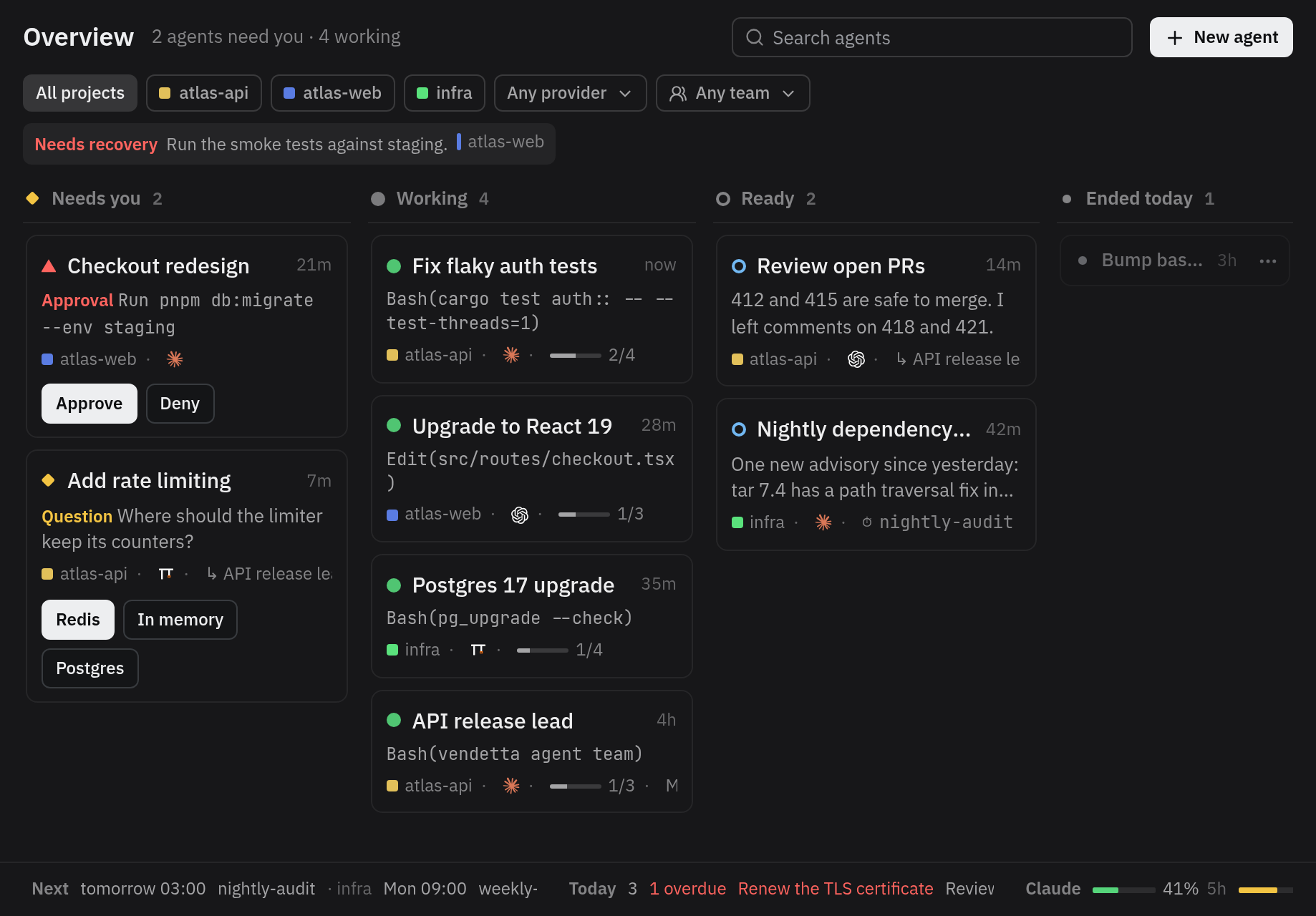
This guide is for a day with agents in several projects at once. At the desk, the chooserChooser. The screen in your terminal that lists projects and agents and jumps to any of them: vendetta tui, or Alt+s in tmux once you bind it. and the overviewOverview. The dashboard of four lanes: Needs you, Working, Ready, and Ended today. show which one needs you. Away from it, the same questions reach your phone.
The examples follow Mara, a backend developer with agents in atlas-api, atlas-web,
infra, and hub. You need a paired phone or browser, with
Advanced turned on in its Settings.
Find the agent that needs you
Section titled “Find the agent that needs you”Press Alts in tmux, or run vendetta tui. Each project shows
how many of its agents are waiting, working, ready, and exited. Then:
- ! shows only agents that need you;
- every row has a jump hintJump hint. The letters beside a row in the chooser. Type them and press <kbd>Enter</kbd> to go to that pane.: type it and press Enter to go to that pane;
- / searches names, paths, providers, and states;
- Tab moves to the next project.
Press w for the overview. Needs you lists questions and approvals, the longest waiting first. Answer a simple one on its card with its number.
Start work in two projects
Section titled “Start work in two projects”In the chooser, select atlas-api and press n to start an agent there,
then do the same in atlas-web. Give each its task in its pane, or with
i on its overview card.
From the phone, New Agent does the same: pick the project, write the first message, and choose the provider, model, and effort or leave the provider’s own.
Leave the desk
Section titled “Leave the desk”Nothing needs switching on. The agents keep running in their terminals on the computer, and each is a chat in the app.
When an agent asks a question, its chat shows a card with the options, the recommended one marked. Tap one. A question with several parts walks you through them and ends on a review page with Submit.
When Claude Code asks permission for a tool call, the card shows the command or the edit and why Claude asks. Read it, then tap Allow once or Deny. Other providers’ approvalsApproval. A provider's permission dialog for a tool call. Only you answer one: at the terminal, or for Claude Code in the iPhone and web apps with Allow once or Deny., and a Claude subagent’s, wait at the terminal.
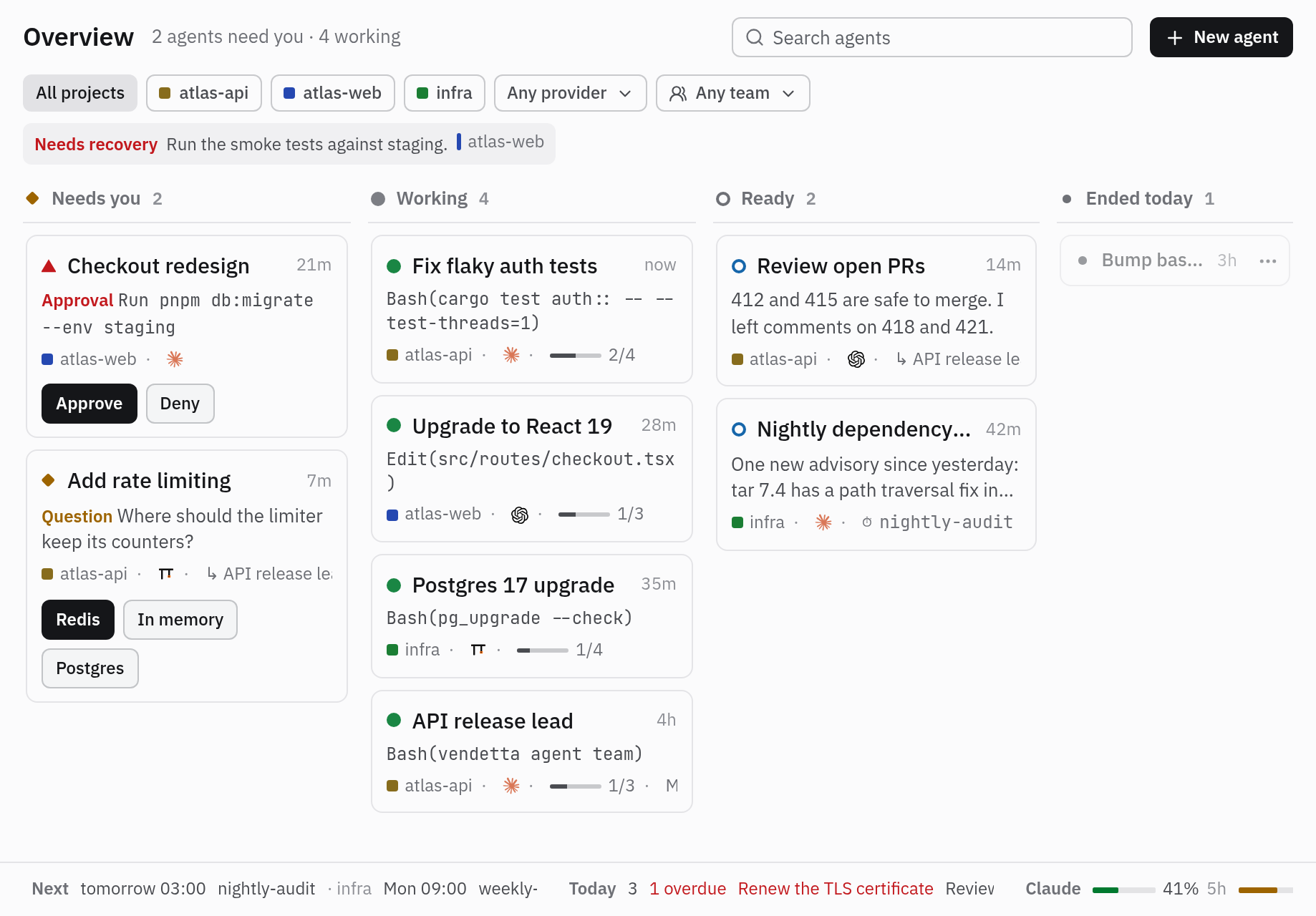
The app’s Overview shows the same four lanes as the terminal, and you can answer on the cards there too.
Send a follow-up
Section titled “Send a follow-up”Type in the agent’s chat, or hold the microphone and talk; release to send. A voice note reaches the agent as its transcript, which needs transcription set up on the computer.
A message to a working agent is a normal prompt. Under it, the mark says what happened to it:
| Mark | Meaning |
|---|---|
| Waiting | The agent has not taken it yet |
| Read | It started a turn or joined the running one |
| Not delivered | The agent will never read it; Resend sends it as a new message |
To hold messages until the agent’s turn ends, use the queueQueue. Messages you line up for after the agent's current turn.. It keeps up to 50, and you can reorder, edit, or remove them.
Read what it changed
Section titled “Read what it changed”When an agent commits work on a branch and opens a changeChange. An agent's committed work on one branch, shown with its revisions and diffs so you can read and comment on it. for it, the chat links the change, and Changes lists them all. Open one for the diff against its base, its commits, and what is still uncommitted.
Select a line or a range, write a note, and send your notes together. The agent gets them numbered and answers with new commits on the same change.
For a screen recording or a render, see Review an agent’s video.
Put a manager over them
Section titled “Put a manager over them”To follow three agents on one release through one chat, give them a managerManager. A Master for part of the work, usually one project: an agent with a team beneath it.. In the app, choose Select Agents, tick the three, and tap New Manager. Write the Request, such as “Finish the 2.4 release”, and start it.
The three fold under the manager in the chat list. They are mutedMuted. An agent whose turns, questions, and approvals notify nobody. from then on: their finished turns and questions go to the manager, and the manager tells you what matters, with links into each agent’s reply. An approval still needs you: the manager reports it, and it shows under Needs you in the overview.
In the chooser, tag the agents with t and press n for the same thing. More in Master, managers, teams.
Pick up yesterday’s conversation
Section titled “Pick up yesterday’s conversation”Ended conversations stay listed for seven days. In the chooser, they are the gray rows in a project and in the history; Enter restores that exact conversation in a new pane. In the app, open History and choose Resume, or send a message in the ended chat.
Let recurring work run itself
Section titled “Let recurring work run itself”A check you run every night belongs in a scheduleSchedule. A prompt sent on a cron time, once at a set time, or on demand., which records each run and stops after a failed one. See A nightly job with run history.
Without tmux, without the iPhone app
Section titled “Without tmux, without the iPhone app”- No tmux: agents in any terminal are listed, and Claude Code, omp, and OpenCode take prompts and answers from the apps. Codex, Gemini CLI, and Aider need tmux or Kitty for remote prompts, and so do agents Vendetta starts for you. See Without a host.
- No iPhone: the web client does the same in any phone’s browser. Pair it as a browser.
- Only SSH: below 100 columns the chooser switches to a compact layout that works from a phone’s terminal, down to 20×6.